



Download Link
Read before
Installation guide
How to Install & Activate Microsoft OneNote 2016 (Step-by-Step)
Follow the instructions below to install and activate Microsoft OneNote 2016 on your Mac OS.
Step 1 – Download Microsoft OneNote 2016
Download the Microsoft OneNote 2016 installation file using the download link we sent you after your purchase.
Tip: Make sure the file is fully downloaded before starting the installation.
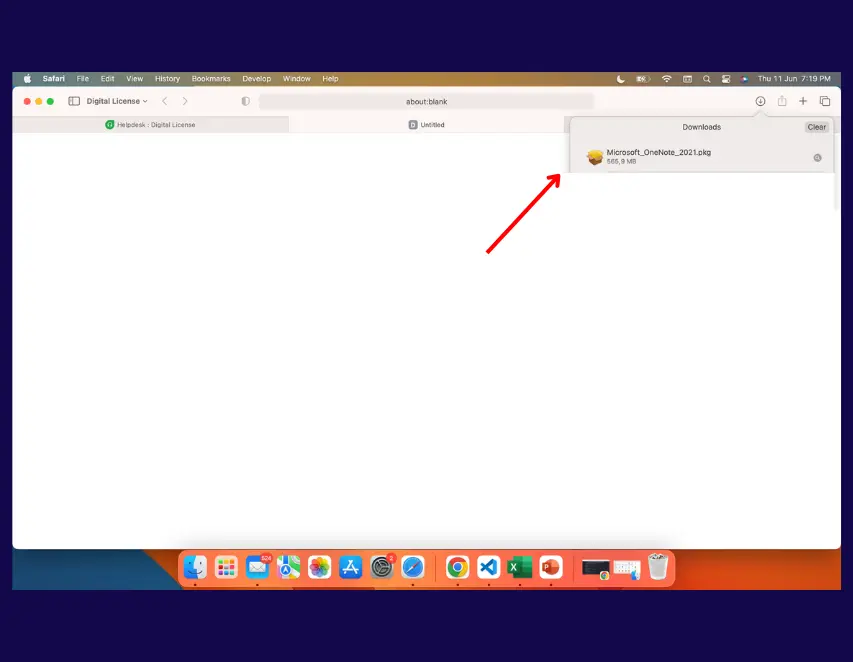
Step 2 – Open the Downloaded File
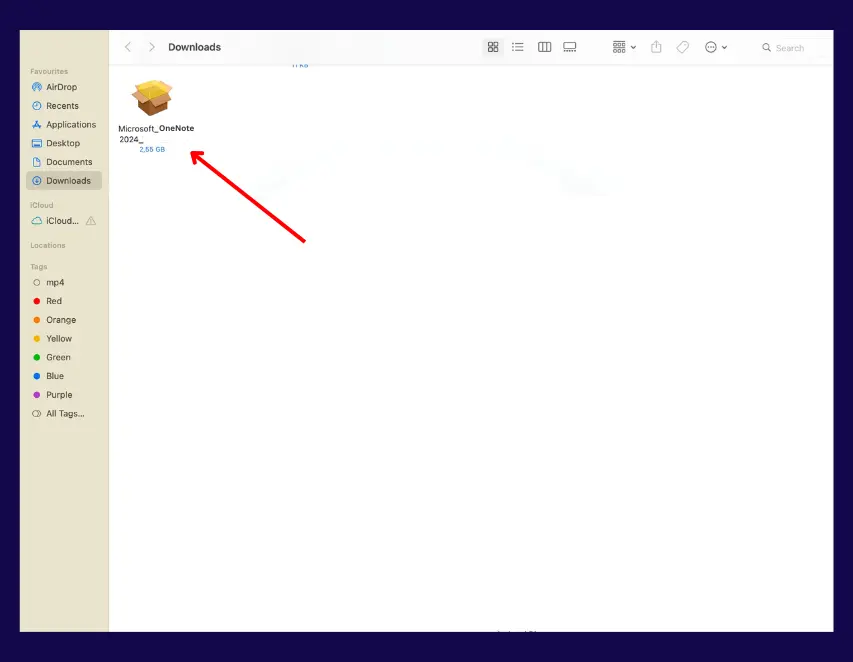
Locate the downloaded installation file on your Mac, usually in the Downloads folder.
Double-click the file to open it and start the installation process.
Step 3 – Run the Installer
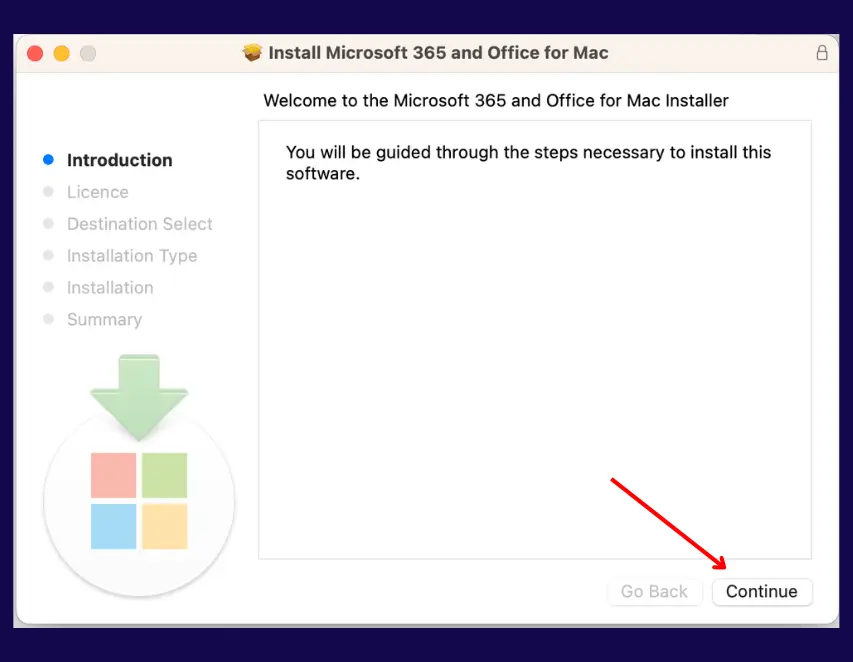
When the installer opens, follow the on-screen instructions to install Microsoft OneNote 2016 on your device.
Click Continue, accept the license agreement, and proceed with the installation.
Step 4 – Finish Installation
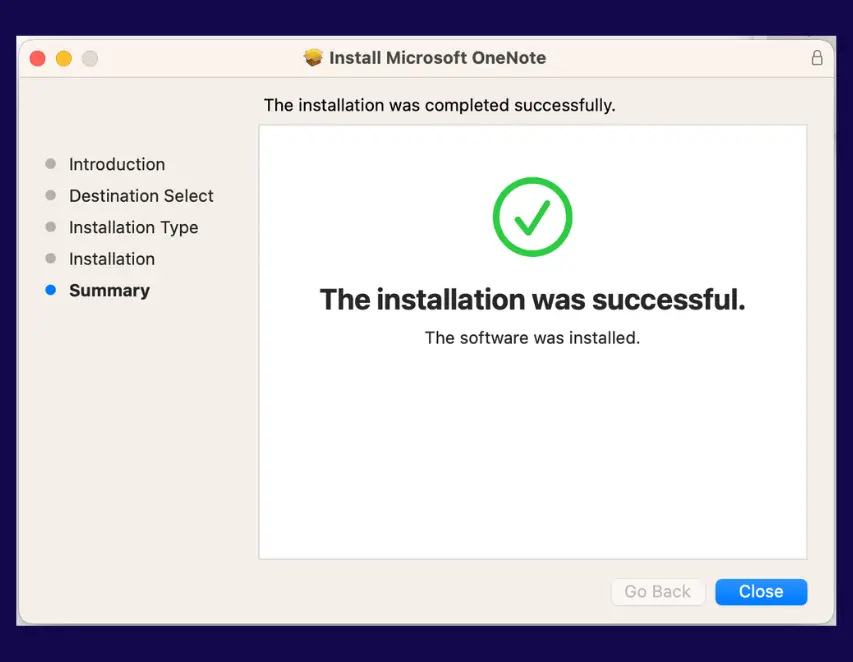
Wait until the installation is complete.
Once finished, click Close.
Step 5 – Do Not Open Office Apps Yet
After the installation is complete, do not open any Office app yet.
First, install and apply the license file we sent you. This step is required before opening OneNote, Word, Excel, PowerPoint, or any other Office app.
License Installation Guide
License File Installation Guide
Follow the instructions below to download, install, and apply your Microsoft OneNote 2016 license file on your Mac.
Step 1 – Download the License File
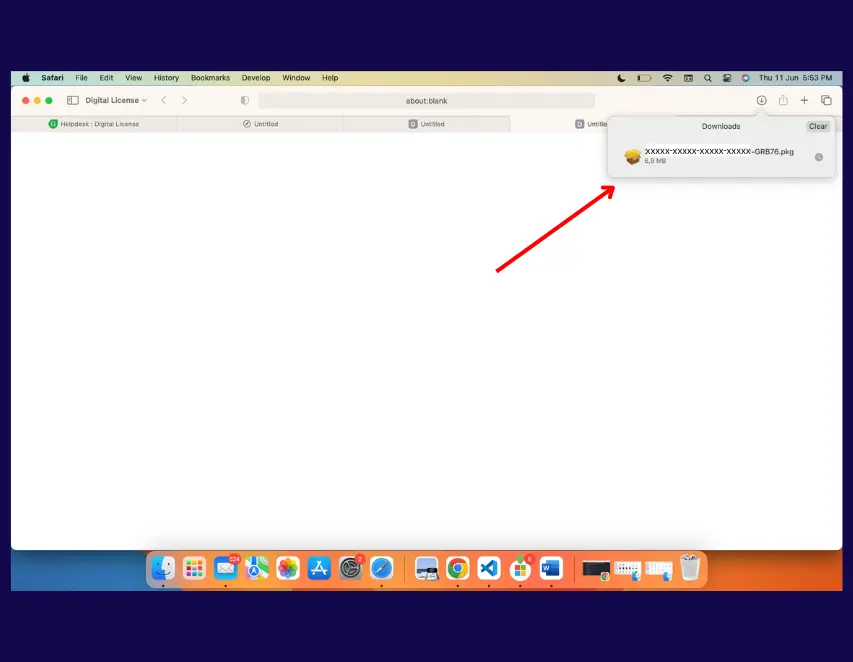
Download the license file using the link we sent you after your purchase.
Tip: Make sure the license file is fully downloaded before starting the installation.
Step 2 – Start the License Installation
When the license installer opens, follow the on-screen instructions to install and apply the license file.
Click Install and proceed with the installation.
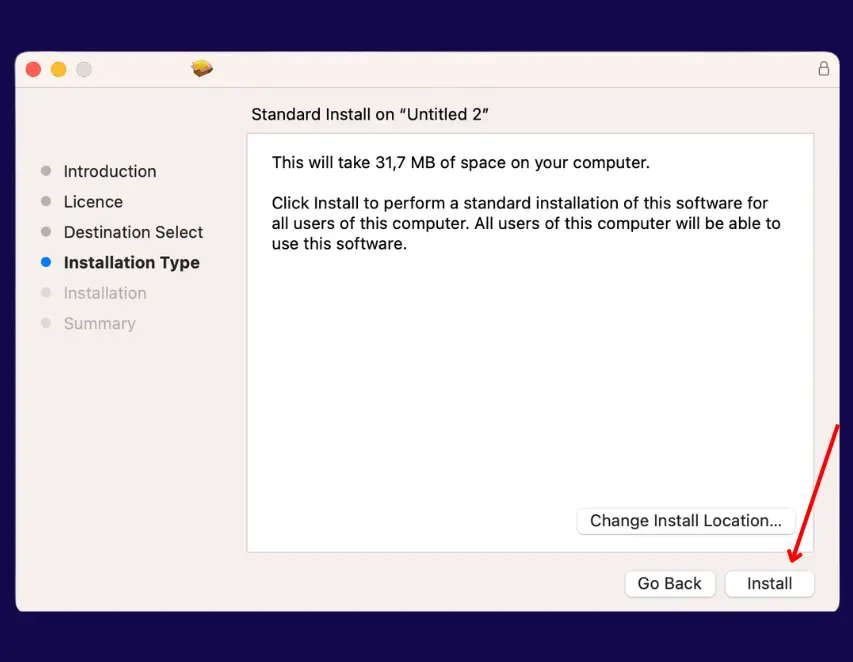
Step 3 – Complete the License Installation
Wait until the license installation is complete.
Once finished, click Close.
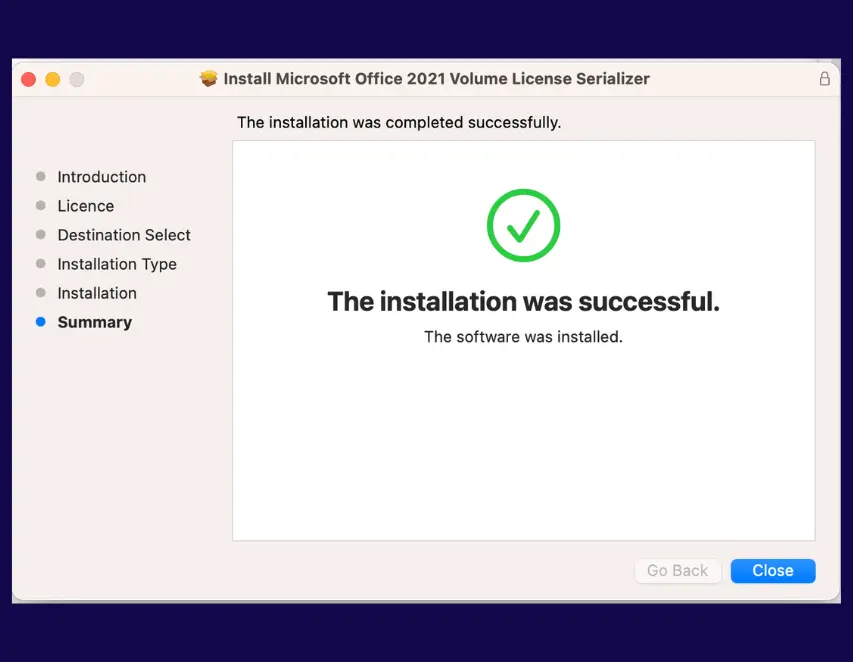
Step 4 – Installation Complete
The license file has now been installed successfully.
Everything is ready. You can now open Microsoft OneNote 2016.
Activation Issues
Activation Issues
If Microsoft OneNote 2016 does not activate correctly or you receive an activation error, please follow the steps below.
Step 1 – Download the Reset File
Download the Microsoft OneNote 2016 Reset file using the link below:
Download Microsoft OneNote 2016 Reset File
Tip: Make sure the reset file is fully downloaded before starting the process.
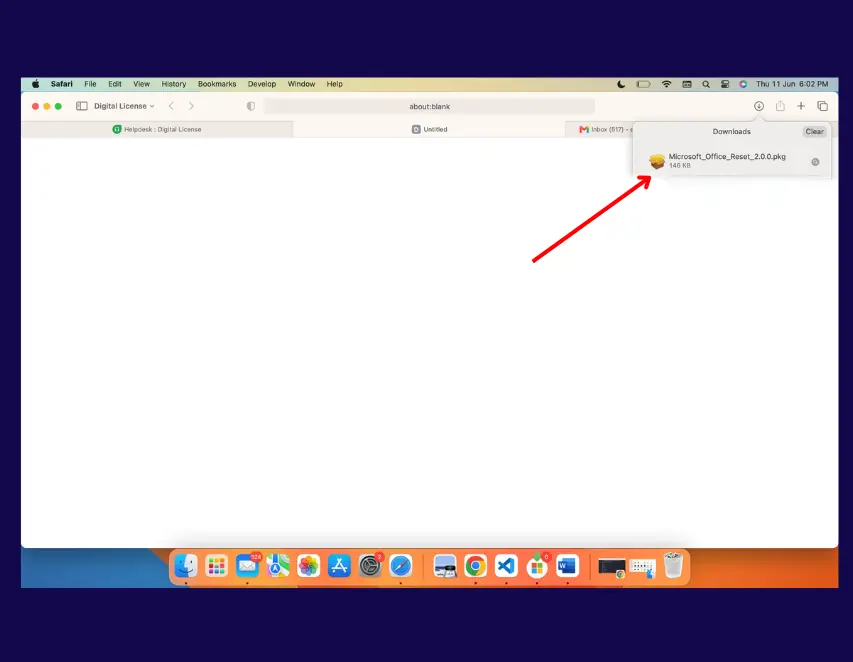
Step 2 – Start the Reset File
Locate the downloaded reset file on your Mac, usually in the Downloads folder.
Double-click the file to open it and start the reset process.
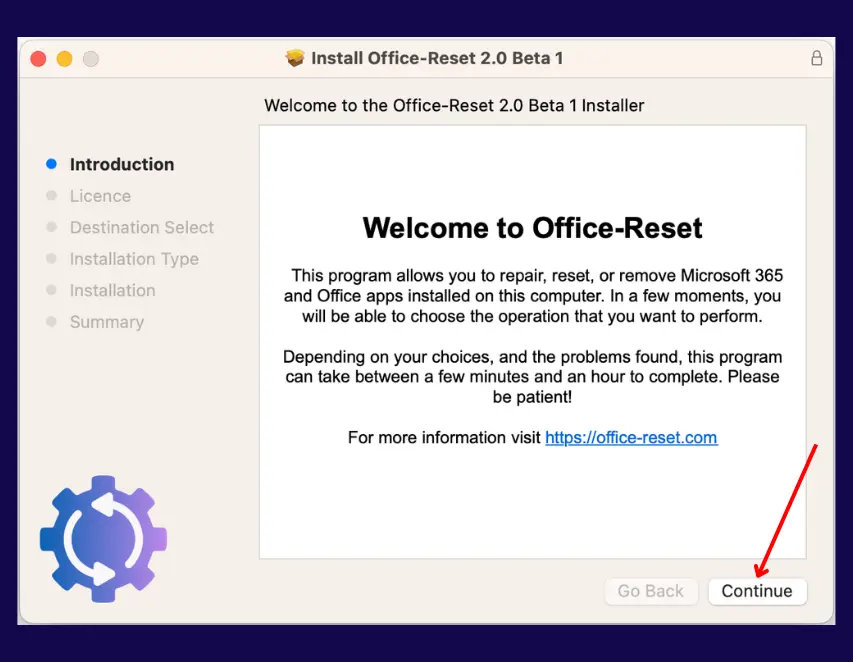
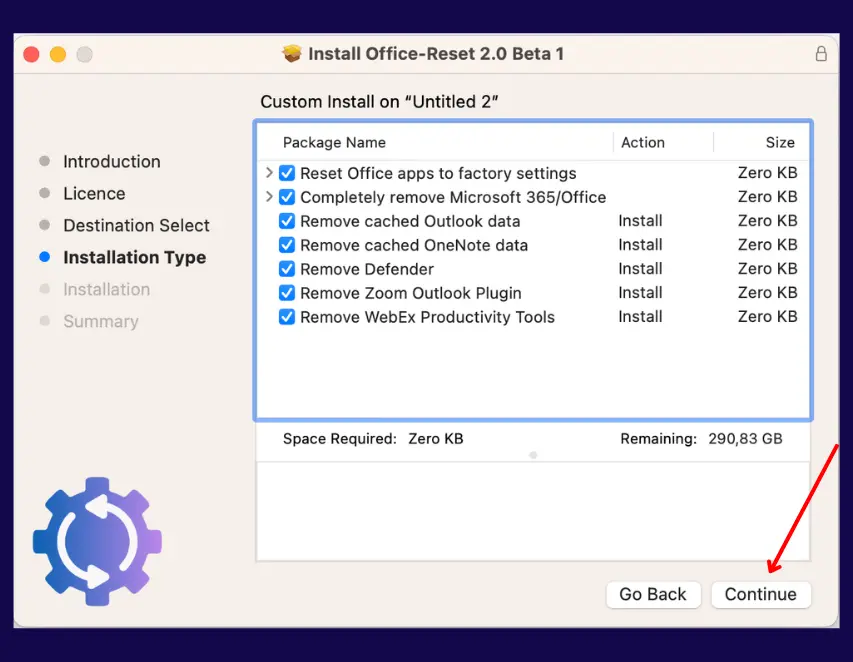
Step 3 – Complete the Reset
Follow the on-screen instructions to complete the reset process.
Click Continue and proceed until the process is complete.
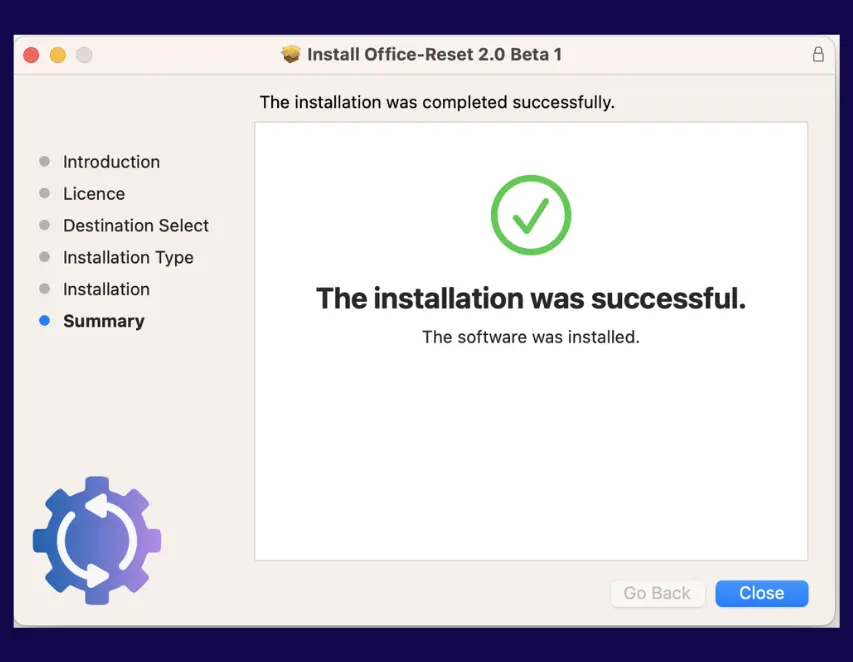
Once finished, click Close.
Step 4 – Restart the Installation Process
After Microsoft OneNote 2016 has been reset successfully, start the installation process again from the beginning.
Download the Microsoft OneNote 2016 installation file again, install Microsoft OneNote 2016, and then install the license file.
Step 5 – Complete Activation
Once Microsoft OneNote 2016 and the license file have been installed again, open Microsoft OneNote 2016.
Microsoft OneNote 2016 should now be activated and ready to use on your Mac.